
In this post i am going to explain about Selenium Grid Extras.
Selenium Grid Extras :
Simplify the management of the Selenium Grid Nodes and stabilize said nodes by cleaning up the test environment after the build has been completed.
For More information on Selenium Grid Extras you can refer to this link.
Selenium-Grid-Extras
Features of Grid Extras:


Selenium Grid Extras :
Simplify the management of the Selenium Grid Nodes and stabilize said nodes by cleaning up the test environment after the build has been completed.
For More information on Selenium Grid Extras you can refer to this link.
Selenium-Grid-Extras
Features of Grid Extras:
- Ability to control individual grid nodes, following is an incomplete list of OS level tasks:
- Killing any browser instance by name
- Stopping any Process by PID
- Moving mouse to specific location
- Get Memory usage and disk statistics
- Automatically upgrade WebDriver binaries
- Restart node after a set number of test executions
- Central storage of configurations for all nodes on the HUB server
- Screenshots at the OS level
- And much more.
Steps to Install / Configure Selenium Grid Extras:
Download Grid Extras Jar file from Here : Download Selenium-Grid-Extras

Selenium Grid Extras is a project that helps you set up and manage your local Selenium Grid. Typical instances of the Grid consists of the HUB and Nodes. The HUB is responsible for managing test sessions and assigning new session idle nodes.
Setup of Grid Extras is made to be simple, just run the packaged JAR file and point the node at the HUB location, Grid Extras will take care of the rest for you.
Hub SetUp:
1. After downloading selenium grid extras jar file, open command prompt and navigate to folder where grid extras jar file is available.
2. Type in command java -jar

I renamed selenium grid extras jar file to SeleniumGridExtras.jar.
After starting seleniumgridextras it will prompt several questions.
What is the default Role of this computer? (1 - node | 2 - hub | 3 - hub & node)
Default Value: 1
if you want to use your machine as Hub..then you need to type 2, if you want to use your machine as hub and node then type 3.
In this case i am using it as hub so i type in 2.
What is the HOST for the Selenium Grid Hub?
Default Value: 127.0.0.1
In my case it is default value so i just click Enter
What is the PORT for the Selenium Grid Hub?
Default Value: 4444
Press Enter port will be set to 4444
What is node Platform? (WINDOWS|XP|VISTA|WIN8|WIN8_1|MAC|LINUX|UNIX|ANDROID)
Default Value: VISTA
I left it as default
Would you like WebDriver, IEDriver and ChromeDriver to auto update (1-yes/0-no)
Default Value: 1
Press Enter --it will automatically updte your webdriver,IE and chrome drivers
Once you set all options your command prompt should look like this

Verify Grid Console and Grid Extras
type in the IP address which is shown in command prompt and output looks like this

It shows you RAM and OS details
Now open grid console --- http://localhost:4444/grid/console

Grid Node Set Up:
Go to another machine and start seleniumgridExtras.jar
It will prompt several questions:
What is the default Role of this computer? (1 - node | 2 - hub | 3 - hub & node)
Default Value: 1
type 1 ..bcs we want to use this as node
What is the HOST for the Selenium Grid Hub?
Default Value: 127.0.0.1
type in IP address of HUB ..ex: 172.xx.xx.xx
What is the PORT for the Selenium Grid Hub?
Default Value: 4444
Press Enter port will be set to 4444
Will this node run 'Firefox' (1-yes/0-no)
Default Value: 0
Yes I want to run Firefox so i type in 1
What version of 'Firefox' is installed?
Default Value: 36
It will identify your firefox version. Press Enter
Will this node run 'InternetExplorer' (1-yes/0-no)
Default Value: 0
Yes I want to run IE so i type in 1
Similarly it will prompt questions for Chrome, Safari based on your requirement you have to choose option.
Would you like this Node to auto update browser versions? (1-yes/0-no)
Default Value: 1
press 1 if you want to auto update browser versions.
Should this Node record test runs? (1-yes/0-no)
Default Value: 1
Press Enter
Once you set all the options it will start Grid Extras..
it should look like this....

Now you are all set to run your scripts on grid extras.
Again come back to HUB and navigate to http://localhost:4444/grid/console
it should look like this

Now i can run scripts in FF,IE and Chrome.
The rest is same..you have to run your webdriver script.
Below is the sample script.
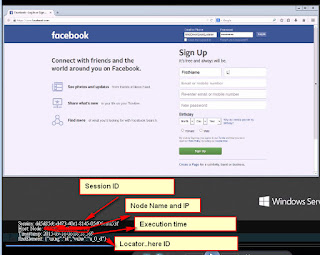
Once the execution is done...Open HUB URL http://1xx.xx.xx.xx:3000/ or in HUB machine open url
It should look like this...

You can see videos in seleniumgrid extras folder...where you seleniumgridextras jar file is available. One folder will be created with name "video_output" in that folder you can see video files.


